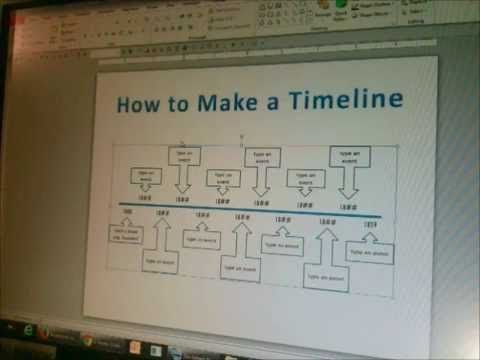
PowerPoint, a staple in business presentations and educational lectures, offers a plethora of built-in features and add-ins to enhance productivity and visual storytelling. One such versatile tool is the PowerPoint timeline add-in, which allows users to create dynamic and engaging timelines within their presentations. If you're looking to visualize data, illustrate processes, or narrate a historical event, a PowerPoint timeline add-in could be just the thing to transform your slides.
In this guide, we'll delve into the world of PowerPoint timeline add-ins, exploring their benefits, how to use them, and some of the best add-ins available. By the end of this article, you'll be equipped to create captivating timelines that engage your audience and convey your message effectively.
Understanding PowerPoint Timeline Add-ins
PowerPoint timeline add-ins are third-party tools that extend the functionality of Microsoft PowerPoint. They enable users to create interactive and customizable timelines, offering a range of features not readily available in PowerPoint's standard functionality. These add-ins can help you present information in a more digestible and visually appealing way.


Some timeline add-ins offer advanced features such as automatic date recognition, customizable timeline shapes and colors, and the ability to export and share your timelines. By leveraging these add-ins, you can take your presentations to the next level and captivate your audience with fascinating timelines.
Benefits of Using PowerPoint Timeline Add-ins
Incorporating timelines into your PowerPoint presentations offers numerous benefits, including:


- Enhanced Visualization: Timelines help convert complex data into visually digestible information.
- Storytelling: They allow you to weave narratives, engaging your audience and making your content more accessible.
- Interactivity: Some add-ins enable interactive features, inviting your audience to explore and engage with your content.
- Professionalism: Well-crafted timelines exude professionalism and demonstrate your attention to detail.
How to Use PowerPoint Timeline Add-ins
Using a PowerPoint timeline add-in is generally straightforward. After installing the add-in, follow these steps:
- Open your PowerPoint presentation and go to the slide where you want to insert the timeline.
- Access the add-in's menu (usually found in the 'Developer' tab or under the add-in's specific tab/ ribbon).
- Choose the timeline type or template you want to use.
- Customize the timeline by adjusting dates, adding events, modifying colors, and incorporating any desired features specific to the add-in.
- Populate your timeline with relevant data or content.
- Test and refine your timeline to ensure it effectively communicates your message.
The Best PowerPoint Timeline Add-ins
With numerous timeline add-ins available, finding the best one can be challenging. Here are some highly-rated PowerPoint timeline add-ins to consider:
Timeline Maker for PowerPoint
Timeline Maker offers an extensive range of timeline templates, along with advanced features like automatic date recognition, importing data from Excel, and customizing timelines to match your organization's branding.


Lucidchart for PowerPoint
Lucidchart offers a streamlined, drag-and-drop interface for creating professional-looking timelines. It also boasts real-time collaboration and seamless integration with other Microsoft Office apps.
Office Timeline for PowerPoint
Office Timeline provides a user-friendly experience, allowing you to create timelines quickly and easily. With customizable styles and the ability to sync timelines with Excel data, this add-in is perfect for project management presentations.
In the realm of PowerPoint presentations, timeline add-ins serve as powerful tools to convert complex data and narratives into engaging visual stories. By incorporating these add-ins into your workflow, you can create compelling presentations that captivate and inform your audience. So, go ahead, explore the world of timeline add-ins, and unlock the full potential of your PowerPoint presentations.